Scanning
Scanning lets your staff find items, add them to orders, check them back in and put them away without typing. Propcart supports three kinds of scanning:
| Scan | With | Use it to |
|---|---|---|
| QR codes | A phone or tablet camera, or a handheld scanner | Open an item, add or return line items, scan bin locations |
| Barcodes | A phone or tablet camera, or a handheld scanner | Open an item, add or return line items |
| RFID tags | An RFID reader | Find items, add or return line items |
Scanning devices
Phone and tablet cameras
The Dashboard has a built-in scanner that uses your device's camera to read QR codes and barcodes. You'll find it in two places:
- The header: tap the QR code icon at the top of any page. It only appears on phones and tablets.
- Orders: tap the Scan QR Code button next to the "Add Item to Order" or "Return Item" box.
The camera works well for scanning a few items. To scan many items in a row, use a handheld scanner.
Handheld scanners
A handheld scanner reads barcodes and QR codes faster than a camera. Pair a Bluetooth scanner, or plug in a USB one, to your computer, tablet or phone. See Barcode or QR Code Scanner for the scanners we recommend, and Zebra Mobile Computer with Scanner for all-in-one devices.
The Dashboard reads a handheld scanner as if it were a keyboard, so set up your scanner to:
- Use Basic Mode, also called Human Interface Device (HID) or keyboard mode
- Send an Enter after each scan (most scanners do this by default)
Before you scan, click or tap into the box you're scanning into, just as you would before typing.
RFID readers
An RFID reader works the same way as a handheld scanner: set it to keyboard (HID) mode, click into the box you're scanning into and read a tag. See RFID below.
How Propcart reads a scan
Scans are matched to an item by its SKU, or by its RFID tag if you use RFID.
- QR codes: Propcart QR code labels encode a link such as
HTTPS://DEMOPROPS.COM/SKU/12345. Propcart keeps only the part after the last/, so this label scans as SKU12345. - Barcodes: the barcode must encode the item's SKU exactly. If you're reusing barcode labels from a previous system, check that their numbers match your Propcart SKUs.
- RFID tags: if you've turned on RFID, Propcart first looks for an item with that RFID tag. If none has it, the scan is treated as a SKU.
SKU scans aren't case-sensitive: lowercase letters are read as uppercase. RFID tags must match exactly, including uppercase and lowercase letters.
If a scanned SKU isn't in your inventory, Propcart asks whether you want to add it as a new item. This makes scanning a fast way to create items from pre-printed labels.
QR codes
To print QR code labels for your items, and for advice on durable labels and tags, see QR Code Labels.
To open an item from its QR code label, either:
- Tap the QR code icon in the header and point your camera at the label, or
- Click into the search bar in the header and scan the label with a handheld scanner.
Either way, the Dashboard opens the item's page. Your customers can also scan item labels with their own phone's camera to view the item on your Propcart Pro Webstore.
Barcodes
Scan barcodes with your phone or tablet camera, using the same QR code icon and Scan QR Code buttons as for QR codes, or with a handheld scanner. Scanning a barcode with the header QR code icon opens the item. Scanning one into the search bar in the header searches for that SKU. On an order, switch the "Add Item to Order" or "Return Item" box to Scanner mode (see below) so each scan adds or returns the item right away.
Adding and returning line items
Scanner vs Keyboard
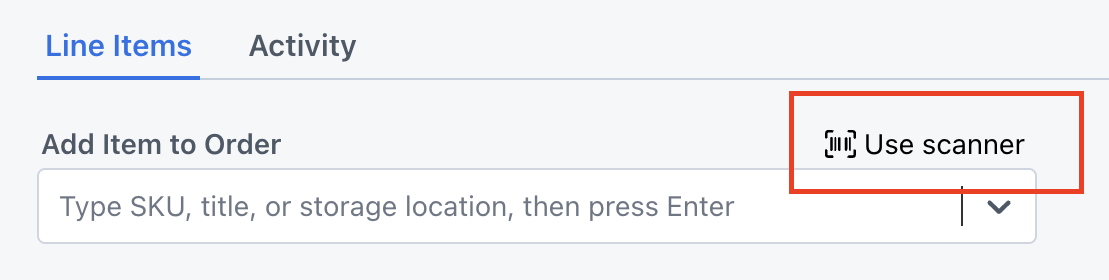
The Add Item to Order and Return Item boxes on an order each have a button above them that switches between two entry modes:
| Keyboard | Scanner | |
|---|---|---|
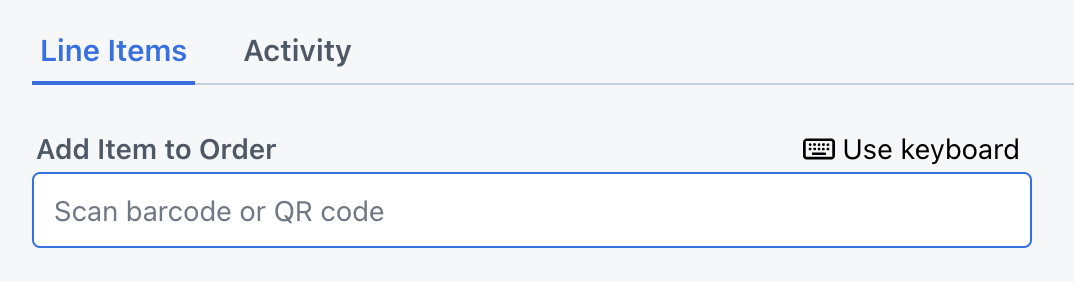
| Button to switch to it | Use keyboard | Use scanner |
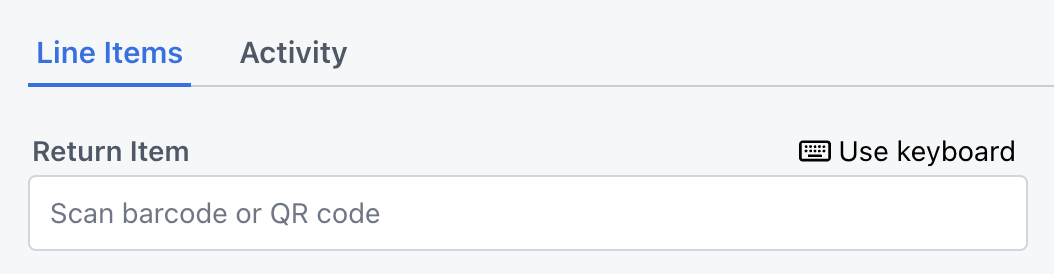
| Placeholder text | Search prompt | "Scan barcode or QR code" |
| How it works | Type a title, SKU or bin location, then choose the item from the list | Scan a barcode, QR code or RFID tag. The item is added or returned as soon as the scan finishes |
| Matches on | Title, SKU or bin location | The exact SKU, or the exact RFID tag if you use RFID |
| Best for | Finding items when you don't have a label to scan | Scanning many items in a row with a handheld scanner or RFID reader |
Use Scanner mode whenever you scan with a handheld scanner or RFID reader. Keyboard mode searches as you type and waits for you to pick a result, so a scan into it can pick the wrong item or nothing at all. Scanner mode also keeps the on-screen keyboard from popping up on phones and tablets.
Your Dashboard remembers the mode you last chose on that device and uses it for both the Add and Return boxes.
Adding line items by scanning
-
Open the order.
-
Above the Add Item to Order box, click Use scanner. The box now reads "Scan barcode or QR code."
-
Click into the box.
-
Scan each item's barcode, QR code or RFID tag.
Each scan adds the item as a line item. You'll hear a beep when it's added and a buzz if something went wrong, such as an unknown SKU or an item that's already fully booked on the order.
On a Confirmed order, the box is labeled Ready Item for Pickup. Scanning an item that's already on the order, or choosing it in Keyboard mode, marks one of it Ready for Pickup instead of adding it again. When every line item is ready, you'll be asked whether to set the order's status to Ready for Pickup. Scanning an item that isn't on the order asks whether you want to add it.
To scan with your camera instead, tap Scan QR Code.
For all the other ways to add line items, see Adding Line Items.
Returning line items by scanning
-
Open the order.
-
Above the Return Item box, click Use scanner.
-
Click into the box.
-
Scan each returned item's barcode, QR code or RFID tag.
Each scan returns one of that item. If more than one is still out, you'll be asked whether to return Just 1 or All. To skip this question, turn on Disable "Return All" Prompt? in your Line Item Settings.
If the line item has a memo, you'll hear a whistle after the beep so you know to read it.
The order's activity log records whether each item was returned with the scanner or the keyboard.
To scan with your camera instead, tap Scan QR Code.
Returning items from more than one order
You can also scan returns without opening each order. Go to the Sales Line Items page, or a customer's Line Items tab, and filter by a status such as Rented Out or Partially Returned. A Return Item box appears above the list, with the same Keyboard and Scanner modes.
Scan an item and Propcart finds the order it's out on. If it's out on more than one order, you'll be asked whether to return it from the oldest one.
For all the other ways to return line items, see Returning Line Items.
RFID
RFID (radio-frequency identification) tags can be read from a distance without a line of sight, which makes them popular for tracking high-value items.
Enable RFID
- Go to your Inventory Settings.
- Under Advanced Settings, turn on Are you using an RFID scanner?
- Click Save.
This adds an RFID field to the Advanced tab of the Edit Item modal. It also lets you scan RFID tags to find items and to add and return line items.
Assign RFID tags to items
- One at a time: open the item, go to the Advanced tab, click into the RFID field and read the item's tag with your RFID reader (or type the tag ID). Click Save. Tag IDs can be up to 32 characters.
- In bulk: use Bulk Importing & Updating and map your tag column to the RFID field. Item spreadsheet exports can include an RFID column too.
A scanned tag must match the saved tag exactly, including uppercase and lowercase letters. To avoid typos, read each tag into the RFID field with your reader rather than typing it. Spaces at the start and end are removed when you save. Give each tag to only one item.
Each replica can have its own RFID tag.
Add and return line items by RFID
Use Scanner mode, just as you would for barcodes:
- Above the Add Item to Order or Return Item box, click Use scanner.
- Click into the box.
- Read each item's tag with your RFID reader.
Propcart finds the item with that tag and adds or returns it. Everything described above for adding and returning by scan works the same way with RFID tags, including marking items Ready for Pickup on Confirmed orders and returning items from more than one order. A replica's tag adds or returns that replica.
In Keyboard mode, reading a tag into the Add Item to Order box lists the item with that tag. Choose it to add it. For a replica's tag, you'll see both the replica and its master item.
Find items by RFID
Read a tag into the search bar in the header or the Search page to find its item.
Bin locations
Bin locations (also called storage locations) tell your staff where each item lives in your warehouse. Each bin can have its own QR code label. You can scan them to:
- See what's in a bin: scan the bin's label with your phone's camera, the header QR code icon, or a handheld scanner in the header search bar. Your Items list opens, filtered to that bin.
- Store items in a bin: open the bin on the Bin Locations page, click the … menu, then Store Items via QR Code. Scan each item's QR code label with your camera to move it into the bin.
- Set an item's bin: on the item's Bin Location field, click the icon next to the field to switch to Use scanner, click into the field and scan the bin's label. Only the bin ID is saved.
- Note a bin on a line item: scan a bin's label into a line item's Memo field and only the bin ID is kept.
In Keyboard mode, you can also type a bin location into the Add Item to Order or Return Item box to find the items stored there.
For printing bin labels, planning bin IDs and more, see Bin Locations.
Sounds
The Dashboard plays a sound after each scan so you don't have to look at the screen:
- Beep: success
- Buzz: error
- Whistle: the returned line item has a memo
You can turn each sound off in your Line Item Settings. See Audio Sounds.
Troubleshooting
Nothing happens when I scan
- Click or tap into the box first, so the cursor is in it.
- Check that your scanner is in keyboard (HID) mode and sends an Enter after each scan. To test it, open a text editor and scan a label. The SKU or link should appear and the cursor should move to a new line.
- If you're scanning into an order's Add or Return box, make sure it's in Scanner mode.
"SKU cannot be found"
The scanned code doesn't match any SKU in your inventory. For barcodes, check that the barcode encodes the item's SKU exactly. For QR codes, check that the label was printed by Propcart, or that it ends in / followed by the SKU. For RFID tags, check that RFID is turned on and that the tag saved in the item's RFID field matches it exactly, including uppercase and lowercase letters. If it doesn't, read the tag into the field again with your reader.
"More than one item for SKU found"
Two items share the same SKU. Change or delete the duplicate, then scan again.
"RFID is on more than one item"
The same RFID tag is saved on two items. The message lists their SKUs. Remove the tag from the item it doesn't belong to, then scan again.
The on-screen keyboard keeps popping up
Switch the box to Scanner mode. Scanner mode doesn't open the on-screen keyboard on phones and tablets.