Physical Inventory Audit
Overview
Over time, inventory naturally becomes inaccurate. Items can be lost, damaged, duplicated, or never properly entered into the system. A physical inventory audit helps you confirm that what's in your warehouse matches what's recorded in Propcart.
This feature lets you systematically verify your inventory and easily track which items have been checked.
When to Use This Feature
Use the Physical Inventory Audit feature when:
- You suspect inventory discrepancies (missing, damaged, or duplicate items)
- You're performing a scheduled quarterly or annual inventory check
- You've just imported large batches of items
- You're onboarding new staff and want to validate your baseline inventory
- You're preparing for insurance, accounting, or internal compliance reviews
This feature is especially useful after major rentals, returns, or warehouse reorganizations.
How to Enable
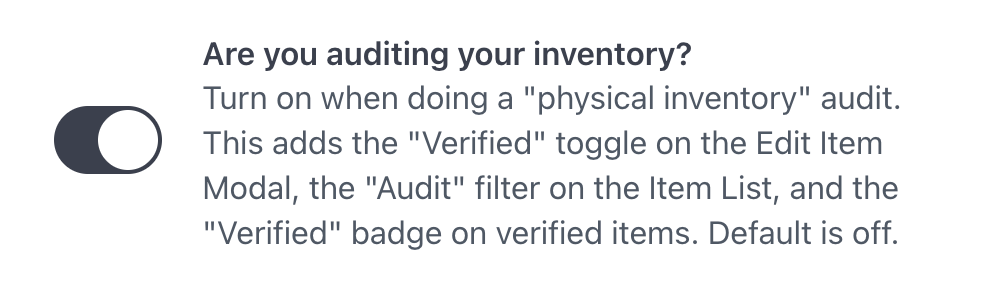
Turn on the Are you auditing your inventory? switch in your Inventory Settings.
How it Works
Once enabled, Propcart adds several tools to help you manage your audit:
Verified Item Toggle
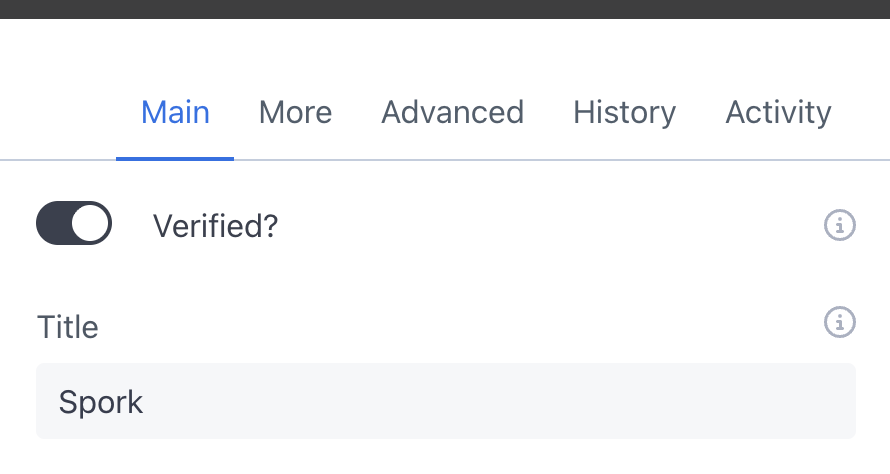
A Verified? toggle appears in the Edit Item modal under the Main tab for each item.
After physically confirming the item and its quantity, turn this toggle on to mark it as verified. You don't need to click Save when only changing the verification status.
Verified Item Badge
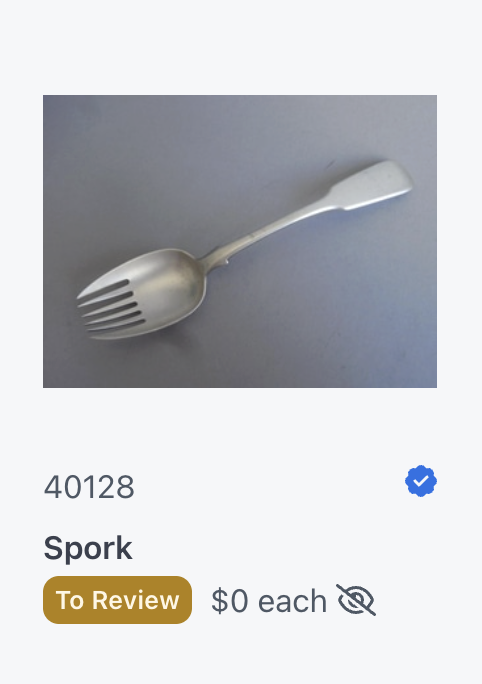
A Verified badge appears on the item card for each item marked as verified.
This allows you to instantly see which items have already been checked.
Audit Filter
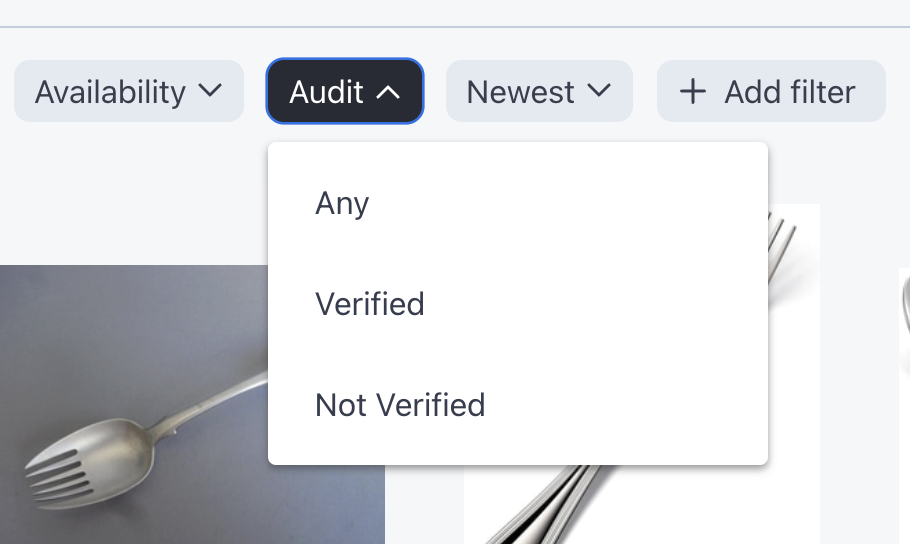
You can then use the Audit Filter to filter for Verified or Not Verified items.
Best Practices
Start with a Clear Scope
Decide whether you're auditing:
- Your entire warehouse, or
- A single department, room, or category
Starting small can make large audits more manageable and less disruptive to daily operations.
Work From “Not Verified” Only
Filter the item list by Not Verified to create a live working list of items that still need to be checked. As you verify items, they'll automatically disappear from the list, helping you track progress in real time without manual notes.
Verify Both Quantity and Condition
When auditing an item, confirm:
- The correct quantity
- Any damage or missing components
If something is damaged or incomplete, update the item notes or condition fields while you're already in the item record.
Audit in Teams When Possible
For larger inventories, work in pairs:
- One person physically handles and counts items
- The other updates Propcart in real time
This reduces errors and speeds up the process.
Audit in Logical Order
Move through your warehouse in a physical path (by shelf, aisle, or room layout) rather than randomly selecting items. This prevents missed sections and duplicate work.
Schedule Regular Audits
Instead of waiting for problems, perform audits on a routine basis:
- Quarterly for high-turnover items
- Bi-annually or annually for slow-moving inventory
Consistent audits prevent large discrepancies from building up over time.
Pause Normal Operations If Possible
If you can, temporarily pause check-ins and check-outs during an audit. This avoids inventory changing while you're trying to verify it.